Build Your Skills
Learn music theory Train your ears Track your tempoRead Now


Get the Newsletter
Categories
- | BeatMirror (11)
- | HearEQ (11)
- | Waay (23)
- | WaayFinder (1)
- Audio (16)
- For musicians (34)
- Guitar (2)
- Music theory (15)
- News (44)
- Startup stories (2)
- Tutorial (4)
Keep in Touch
About Ten Kettles
We love music, we love learning, and we love building brand new things. We are Ten Kettles.
Read more >-
January 31, 2022
How to Use BeatMirror
Last updated: Apr. 16, 2025
BeatMirror detects tempo in real-time using your iPhone or iPad’s built-in microphone. Here’s a deep-dive into how to use BeatMirror and all of its features. Check out BeatMirror in action below and then scroll down to learn more:
1. Get Your Device Ready
- Put Your Device Down. Actively handling the device can cause your hand to accidentally rub against the microphone, adding noise to the incoming audio and reducing detection quality. You’ll get your best performance if the device is somewhere where it won’t be moved around.
- Avoid Competing Noise. Keep your device away from competing noise sources. You’ll get the best tempo detection if the device has nice, clear, noise-free music to listen to. So be wary of loud talking or other sounds near the device.
2. Pick a Mode
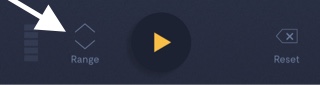
BeatMirror has two modes: Range and Target. Use the mode button to toggle between them. If you have a specific tempo you’re aiming for, choose Target mode. If you’re playing music without a specific tempo in mind (or detecting tempo from a recording), then read on to learn about Range mode.
3. Using Range Mode
In most cases, you can just hit the big start button and start tempo detection right away (see Step 7). But there are a few features that will help you get the best tempo detection every time:
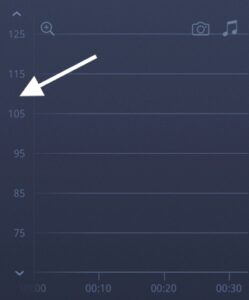
- Adjust Tempo Range. The default tempo range in BeatMirror is 65–130 bpm. You can change the tempo range at anytime by scrolling or tapping the tempo axis. The lowest possible range is 35–70 bpm and the highest is 120–240 bpm.
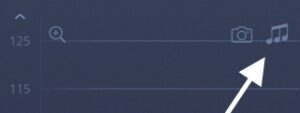
- Triplet Setting. If you’re playing a song in triplet-time (like this one), then toggling on the triplet setting will boost accuracy in a big way!
- Toggle to Target Mode. If you’ve started tempo detection and want to switch to Target mode (e.g., to get visual feedback), you can tap the mode button. This will analyze your recent tempo and set your target tempo accordingly.

Now you’re ready to start tempo detection! You can jump to Step 7 below, or read on to learn about Target mode.
4. Using Target Mode: Target Tempo
The Target Mode is often used by musicians aiming to play music at a specific tempo. There are five ways to set the target tempo quickly and easily.
- Dragging. You can tap and hold the target tempo button, dragging up or down, to set the target tempo. For small changes (e.g., ±1 bpm), drag your finger slightly; for larger changes, drag your finger farther away and the tempo will change more quickly.
- Tempo Keyboard. Tap the target tempo button to reveal the tempo keyboard. Type in a tempo between 40 and 208 bpm.
- Tap Pad. Start tapping on the pad to set the target. Tap outside of the pop-up window to close the keyboard and confirm the new tempo.
- +/- Buttons. If tapping doesn’t give the exact value you’re looking for, use the +/- buttons to adjust the target tempo in ±1 bpm increments.
- Roll the Dice. To get a random tempo, tap the dice button. 🙃
NOTE: If you’re making a big change to the target tempo, it can be helpful to drag your finger twice: once to get “in the ballpark” and the second to hone in on an exact value.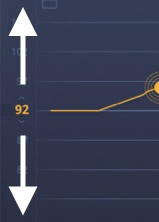
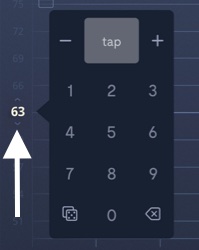
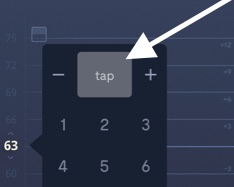
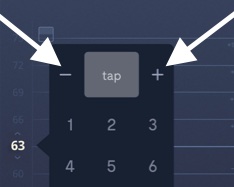
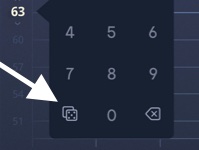
The target tempo can be changed before or during detection. If changed during detection, your tempo history is reanalyzed using the new value.
5. Using Target Mode: Count-In
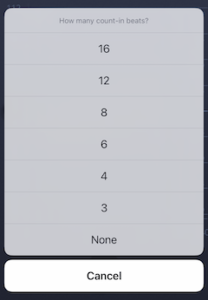
The count-in feature plays the selected number of clicks before detection starts, either through the device speaker or connected headphones, in addition to displaying the count-in on screen. This is particularly useful for musicians who want to get the tempo “in their head”—and their hands on their instrument—before beginning to play.
- Open Menu. Tap the count-in button to select the number of count-in beats (or None).
- Choose Value. Selecting “4” would be the most common choice for musicians playing in 4/4 time. To skip the count-in altogether, you’ll want to select “None.”

6. Using Target Mode: Visual Feedback
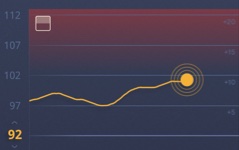
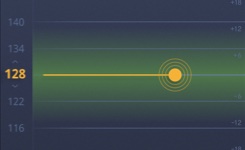
If you’re a musician trying to stick to your target tempo, it can be helpful to turn on visual feedback. A coloured highlight will show you at a glance if you’re playing too fast, too slow, or just right. Toggle the feedback feature on or off at any time.
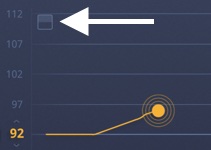
- Toggle Feedback. Tap the button in the top-left of the graph to toggle this feature on and off.
- Detect Tempo Drift. When enabled, the visual feedback feature will show a blue highlight when you are playing too slow and a red highlight when you are playing too fast. Thresholds for “too fast” and “too slow” are ±2% away from the target.
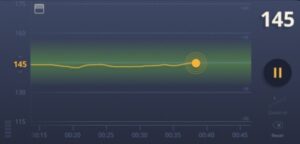
- Detect In-Range Tempo. A green highlight will show when you’re close to the target (within 2%):
7. Detect Tempo (BPM)
Once you’re ready, tap the big start button to begin. Many different features can be accessed during detection, as explained below.
- Start. Tap the big start button to begin tempo detection. Tap it again at any time to pause detection.
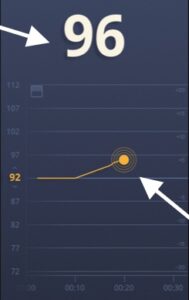
- View Tempo. As tempo is detected, the beats-per-minute (bpm) value will be displayed a) as a big number at the top of the screen, and b) by the graph’s tempo marker (i.e., the dot with surrounding circles). When enough data comes in, the graph will automatically scroll.
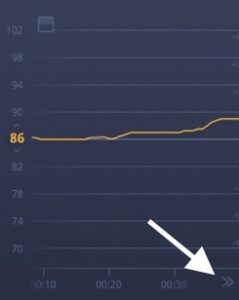
- Scroll Graph. You can manually scroll the graph during detection or when paused to review the tempo history. To resume auto-scrolling, either scroll the graph all the way to the tempo marker (i.e., drag your finger to the left) or tap the resume button:
- Zoom Graph. Tap the zoom button (or double-tap the graph) to select from three zoom options: tight, loose, and full. Tight and loose zooming will auto-scroll when the tempo marker approaches the edge of the graph. Full zooming will periodically re-zoom to ensure all collected data is displayed. (See demo)
- Reset Graph. Reset the graph at anytime. If the graph is reset during detection, detection will restart immediately.
- Full-Screen Graph. If using an iPhone, turn your phone to landscape to maximize the graph.



8. Supplementary Features
BeatMirror offers several other options to help support your tempo detection needs.
- Input Level. The level (i.e., volume) of incoming audio is shown on the level indicator during detection. The level indicator can be found in the bottom-left corner of the screen.
- If the level indicator does not change during detection, see the Troubleshooting section below.
- If the level indicator shows very high levels (e.g., all five bars frequently lit), the audio may distort and affect tempo detection. Consider reducing the volume of your music source, if possible, or moving your device farther away.
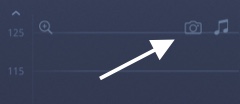
- Screenshot Button. Save or share an image of the graph by tapping the camera button. (See demo.)
- Using Headphones. You can listen to headphones (either wired or Bluetooth) anytime while using BeatMirror, and detection will continue using the device microphone. This is great for playing along with your favourite tracks, a metronome, or hearing the Target mode’s count-in clearly.

9. Other Options
The top menu items let you a) get in touch with the developer (me), and b) view the tutorial.
- Tutorial. Tap the “(i)” button in the top-right to begin an in-app tutorial.
- Contact Us. To send us an email from your device, tap the small envelope button in the top-left. You can also get in touch through the Contact webpage.
10. Troubleshooting
Any issues should be resolved by following these five steps. That said, please don’t hesitate to contact us if you’ve tried them all but are still experiencing issues.
- Verify Setup. Ensure you’ve prepared your device for optimal collection (see Step 1). To verify that the audio is coming through clearly, try recording a quick sample using the Voice Memos app and take a listen.
- Check Range or Target. If you’re in Range mode, then ensure the selected range is appropriate for the music you’re playing; scroll or tap the tempo axis to change it. If you’re in Target mode, then check that the target tempo matches the tempo you’re aiming for.
- Check Mic Input. During detection, tap the microphone on your device (e.g., on the bottom of an iPhone) and ensure that the level indicator responds.
If the level indicator doesn’t respond, that could mean that an external microphone is being used (connected via cable or Bluetooth). Disconnect it and try again. If there isn’t an external microphone connected, there could be an audio permissions issue—try deleting and reinstalling BeatMirror to reset permissions. - Check Music. Ensure there is a clear beat to the music. If you can tap your foot to the music, then BeatMirror should be able to detect the tempo; if you have trouble hearing a beat, then this could be the issue. To see if this is the problem, try BeatMirror with a metronome.
- Reinstall BeatMirror. Not the most satisfying solution, but a quick reinstall can reset any audio permissions/conflict strangeness that might be behind the issue.
Questions, comments, or feature requests? Get in touch any time.
Hi – this looks great but I cannot see the icons or controls in the app. Can I change bkgd?
Thanks for the comment and for your interest in BeatMirror! There’s not an option to change the colour scheme right now, but it is something that we may consider for a future version. Thanks, -Alex